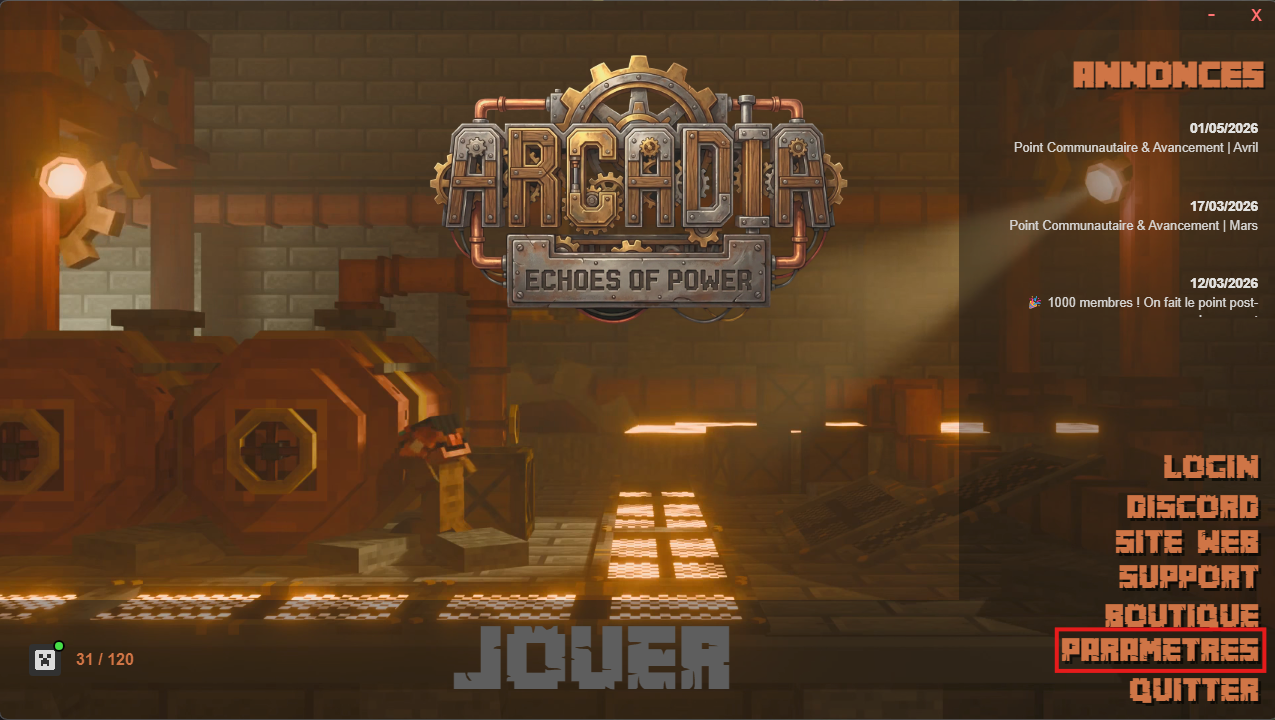
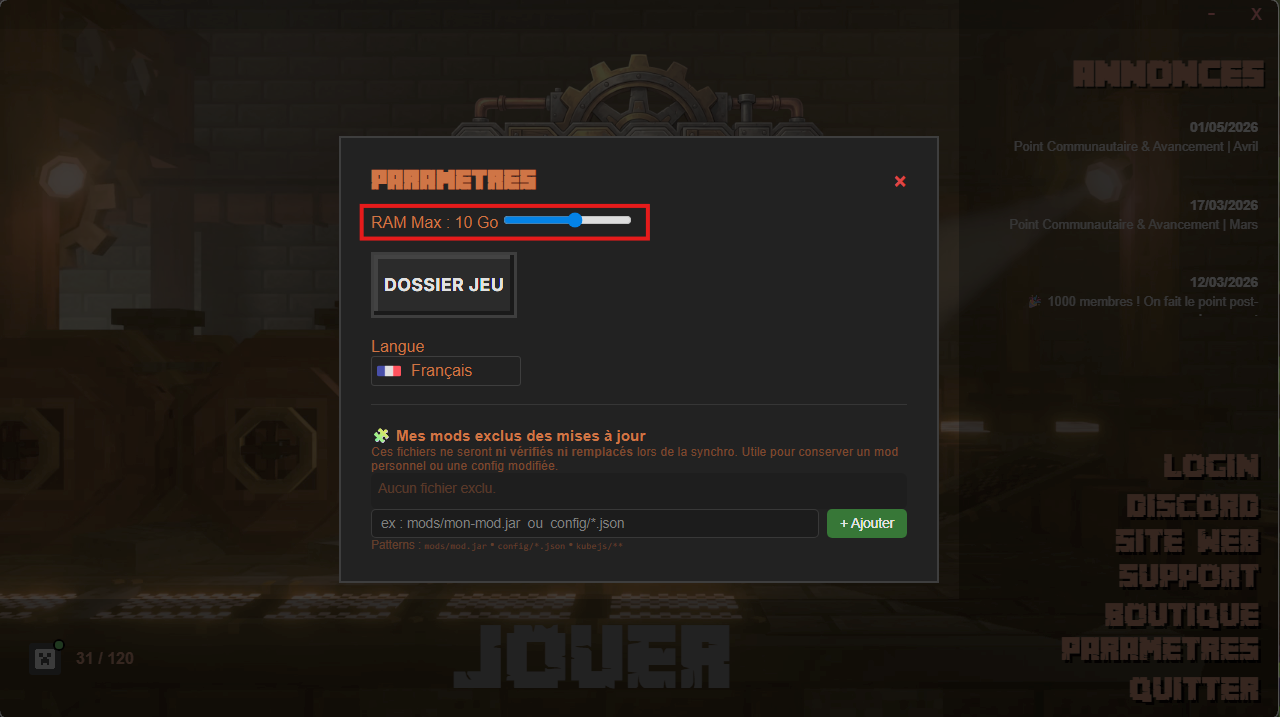
Une mauvaise allocation de mémoire est la cause principale des ralentissements. Voici comment configurer votre launcher :
1
Ouvrez le launcher et cliquez sur le bouton Paramètres située en bas à droite.
2
Ajustez le curseur pour modifier la RAM maximale.
Pour Curseforge :
Voici un Tutoriel pour modifier la quantité de mémoire alloué sur tous vos modpack ou de manière individuel.
💡 Recommandations d'Arcadia :
• Minimum conseillé : 6144 MB (6 Go)
• Idéal (avec Shaders) : 8192 MB (8 Go) à 12288 MB (12 Go)
• Note : Ne dépassez jamais la moitié de la RAM totale de votre ordinateur.
Une mauvaise allocation de mémoire est la première cause de ralentissements sur un gros pack. Trop peu de RAM et le jeu plante, trop de RAM et Java se met à faire des pauses régulières qui ressemblent à des micro-freezes. Contrairement à ce qu'on lit partout, mettre le maximum n'est pas la bonne réponse.
Pourquoi trop de RAM fait ramer
Java range la mémoire au fur et à mesure avec ce qu'on appelle le ramasse-miettes. Plus la mémoire allouée est grande, plus chaque passage de nettoyage a de travail à faire, et plus la pause est longue. C'est exactement ce que tu ressens comme un blocage d'une demi seconde toutes les trente secondes, alors que ton compteur d'images par seconde a l'air correct le reste du temps.
Le pack consomme moins que sa taille ne le laisse croire
Arcadia embarque plusieurs mods dont le seul rôle est de réduire la mémoire utilisée. FerriteCore déduplique les états de blocs et les modèles, ModernFix est réglé pour charger les ressources à la demande plutôt que tout d'un coup, et trois correctifs de fuites mémoire tournent en permanence. Résultat: le pack tient dans beaucoup moins de mémoire qu'un pack de taille équivalente sans ces mods. Inutile de compenser en montant l'allocation.
Combien allouer
RAM de ton ordinateurÀ allouer au jeuRemarque
8 Go4 GoJouable sans shaders, en distance d'affichage réduite
12 Go6 GoLe minimum confortable
16 Go8 GoLa configuration la plus courante, shaders compris
32 Go et plus10 à 12 GoNe monte pas au dessus, ça devient contre productif
Deux règles à ne pas transgresser
Jamais plus de la moitié de la RAM totale de ta machine. Windows, ton navigateur et le launcher ont besoin de vivre aussi, et si le système commence à écrire sur le disque pour compenser, tu perds bien plus que ce que tu as gagné.
Jamais plus de 12 Go non plus. Au delà, les pauses de nettoyage deviennent perceptibles sans que le jeu n'en tire le moindre bénéfice. C'est le piège classique de la machine à 64 Go réglée à 32 Go qui saccade plus qu'une machine à 16 Go bien réglée.
Régler la RAM dans le launcher Arcadia
1Ouvre le launcher et clique sur le bouton Paramètres, en bas à droite.
2Ajuste le curseur de RAM maximale sur la valeur du tableau ci dessus, puis relance le jeu.
Si tu joues via CurseForge
Le réglage se fait soit globalement pour tous tes modpacks, soit modpack par modpack. La seconde méthode est préférable: elle évite de donner 10 Go à un pack vanilla qui n'en a pas besoin.
How to Allocate More RAM to Minecraft
Guide officiel CurseForge, pour modifier la mémoire allouée globalement ou pour un seul modpack.
blog.curseforge.com
Reconnaître un mauvais réglage
SymptômeCause probableQuoi faire
Le jeu plante au chargement, message parlant de mémoirePas assez allouéMonte d'un cran dans le tableau
Blocage régulier d'une demi seconde, sinon fluideTrop allouéDescends d'un cran
Tout est lent en permanence, même en regardant un murCe n'est pas la mémoireVa voir Gagner des FPS
Ça rame quand il y a beaucoup de bruit autourProblème connu de sonChutes de FPS liées au son
Ça rame seulement avec les shadersRéglages du shaderpackRégler ses shaders
Change une seule valeur à la fois, et joue vingt minutes avant de juger. Un pack de cette taille met du temps à atteindre son régime de croisière, et les premières minutes après un lancement ne sont jamais représentatives.
Et pour un serveur
Les règles ne sont pas les mêmes: un serveur n'affiche rien, il calcule. L'allocation, les arguments de démarrage et les réglages de ramasse-miettes fournis avec le pack sont détaillés sur Arguments JVM et RAM. Retiens juste une chose si tu ouvres le fichier: côté serveur, les deux valeurs de mémoire doivent être identiques, ce qui n'est pas le cas côté client où le launcher gère ça pour toi.
Repartir de zéro
Si les réglages ne suffisent pas et que tu veux réinstaller proprement, la marche à suivre, y compris ce qu'il faut sauvegarder avant, est sur Désinstaller le modpack.
Où continuer
La mémoire n'est qu'un des leviers de performance, les autres sont sur Gagner des FPS. Une fois ton réglage trouvé, tu peux rejoindre le serveur. Et si tu veux savoir ce qui tourne exactement dans le pack, la liste des mods détaille chaque entrée, y compris les mods d'optimisation cités plus haut.